
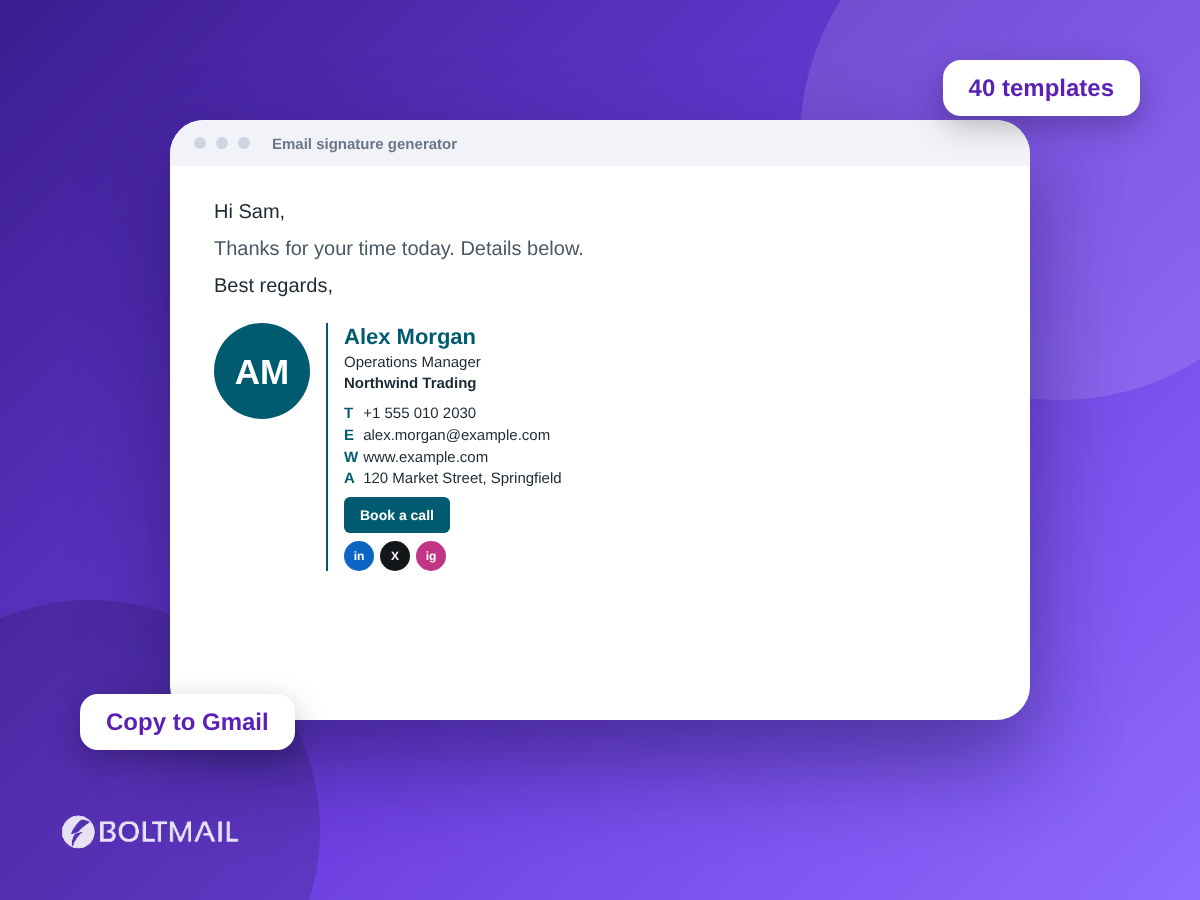

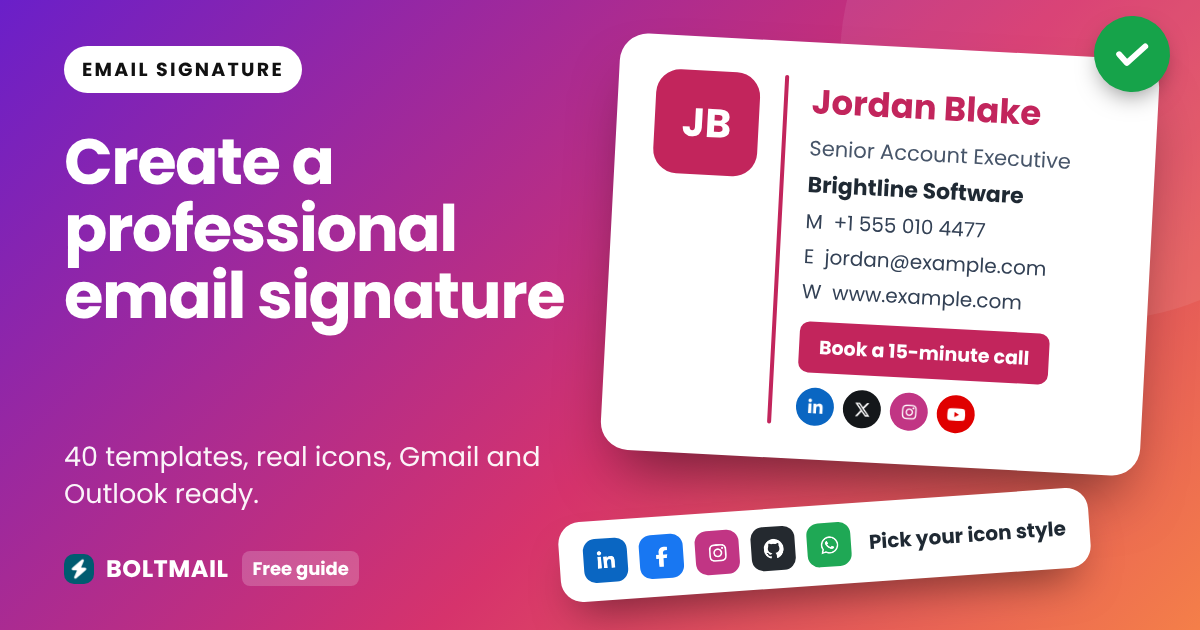
Every email you send ends the same way: with a few lines that tell the reader who you are and how to reach you. A good email signature makes you look organised, saves people the trouble of searching for your number and quietly promotes your work. A bad one is cluttered, breaks in Outlook or arrives with broken pictures. The free BoltMail Email Signature Generator helps you build a clean one in a few minutes: pick one of 40 premade templates or start from scratch, edit everything and paste it into your mail app.
What to put in an email signature
Less is more. People read a signature in two seconds, so give them what they actually need:
- Your full name and, if it helps, your pronouns.
- Your job title and company, so the reader knows your role.
- One or two ways to contact you: a phone number, a website or a booking link. Your email address is already in the message, but it is useful when a message is forwarded.
- A single call to action if you have one, such as "Book a call" or "See current listings".
- A few social links that matter for your work, not every profile you own.
- A legal or confidentiality notice only if your profession or company requires it.
Leave out long quotes, animated pictures, huge banners and your whole life story. They slow the message down and are the first things spam filters and mail apps complain about.
Signature ideas for different jobs
The right signature depends on what you want the reader to do next. That is why the generator starts with ten kinds of signature, each with sample details and the extra lines that kind of work usually needs:
- Business professional: name, role, company, phone, website and address.
- Sales and marketing: a bold button that books a call or demo.
- Freelancer or creative: a portfolio link, your availability and your creative profiles.
- Real estate agent: licence number, a listings button and the office address.
- Doctor or healthcare worker: credentials, clinic hours and a confidentiality notice.
- Lawyer or consultant: a formal layout with a professional disclaimer.
- Developer or IT: a compact, code-friendly layout with GitHub and docs links.
- Student or job seeker: a friendly signature with your degree and a link to your CV.
- Customer support team: a shared look with opening hours and a help-centre link.
- Teacher or academic: department, office hours and a class link.
Design rules that keep it looking professional
A signature is not a web page. Mail apps strip out most modern styling, and each one displays things a little differently, so the safest designs follow a few simple rules:
- Use mail-safe fonts such as Arial, Georgia, Verdana or Calibri. A custom web font is replaced by a default one on most computers.
- Pick one accent colour and use it for your name, the labels and the button. Make sure the text is easy to read: aim for a contrast ratio of at least 4.5 to 1 against the background. The generator shows this in its signature check.
- Stay under 600 pixels wide. Wider signatures get cut off on phones, where most email is now read.
- Keep the picture around 80 to 100 pixels square. A clear head-and-shoulders photo or a simple logo is enough.
- Put the important details in text. Many people block images by default, so a phone number inside a picture is invisible to them.
- Keep the file small. Under about 10 KB is a safe size; some apps cut longer signatures.
Why signatures break, and how this tool avoids it
Most signatures that look perfect in a design tool fall apart in Outlook because that app draws email with an old engine that ignores many web features. The generator builds the signature from plain tables with every style written inline, which is the format mail apps handle most reliably. The social icons are coloured badges and text links built from table cells instead of pictures, so they never need hosting and never show up as broken boxes.
The one thing to watch is pictures. Gmail removes pictures that are stored inside a signature, so for your photo and logo, upload the file to your own website and paste its link into the generator. The signature check tells you when a picture is embedded.
How to add your signature to Gmail, Outlook and Apple Mail
Press Copy signature in the generator, then:
- Gmail: open Settings, choose See all settings, scroll to Signature, create a new one and paste. Save the changes at the bottom of the page.
- Outlook: open Settings, Accounts, Signatures (in the desktop app: File, Options, Mail, Signatures), create a new signature and paste. Set it as the default for new messages and replies.
- Apple Mail: open Settings, Signatures, add one and paste. Untick "Always match my default message font" so your fonts and colours stay.
If your mail app has a box for an HTML signature, use Copy HTML or download the file instead.
Test it before you rely on it
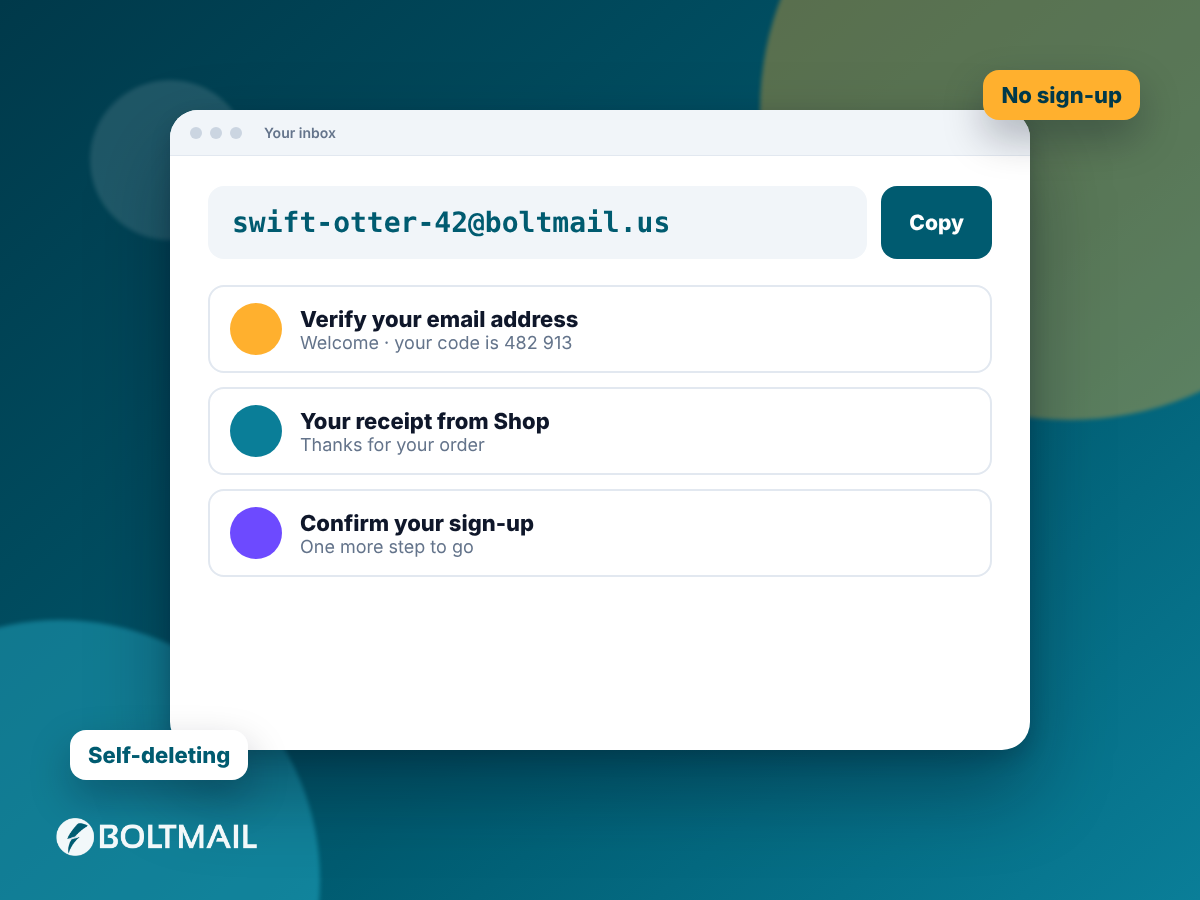
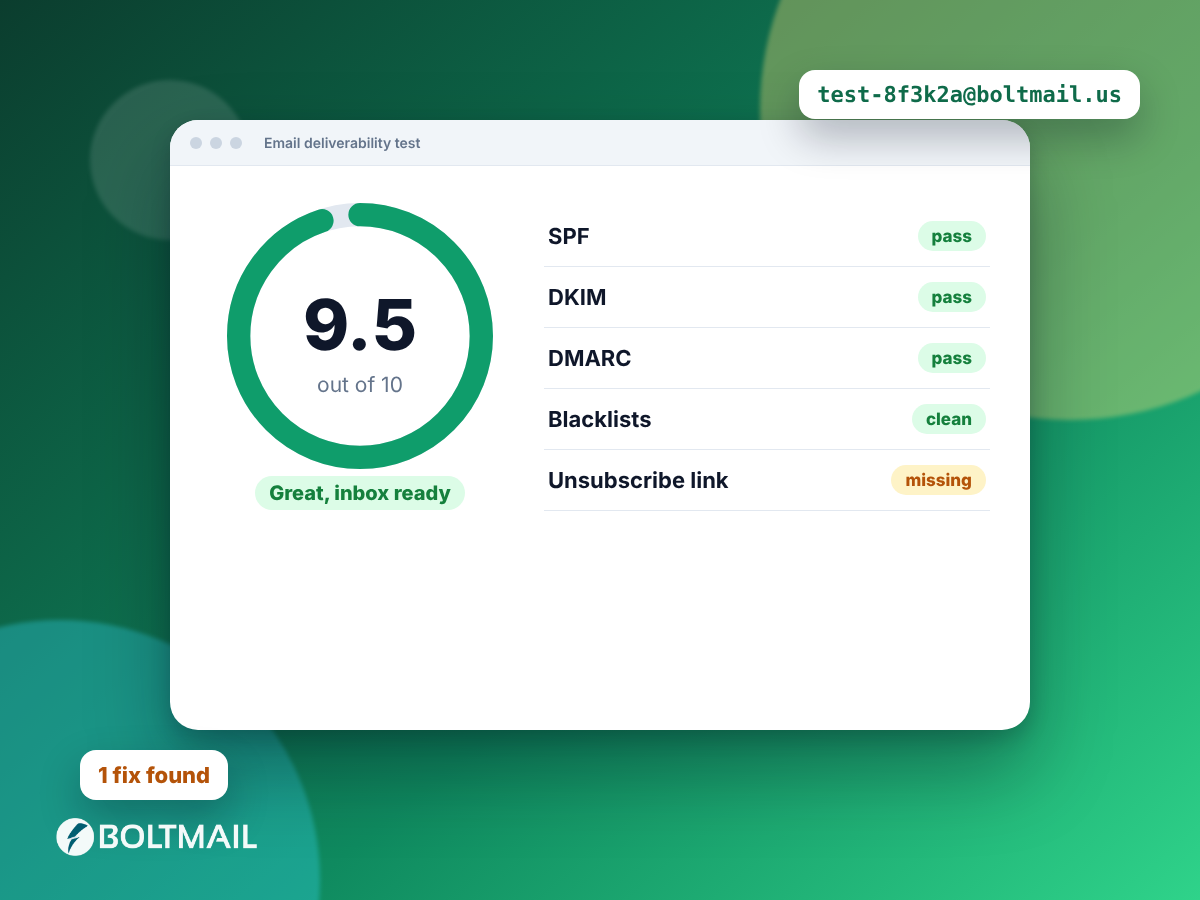
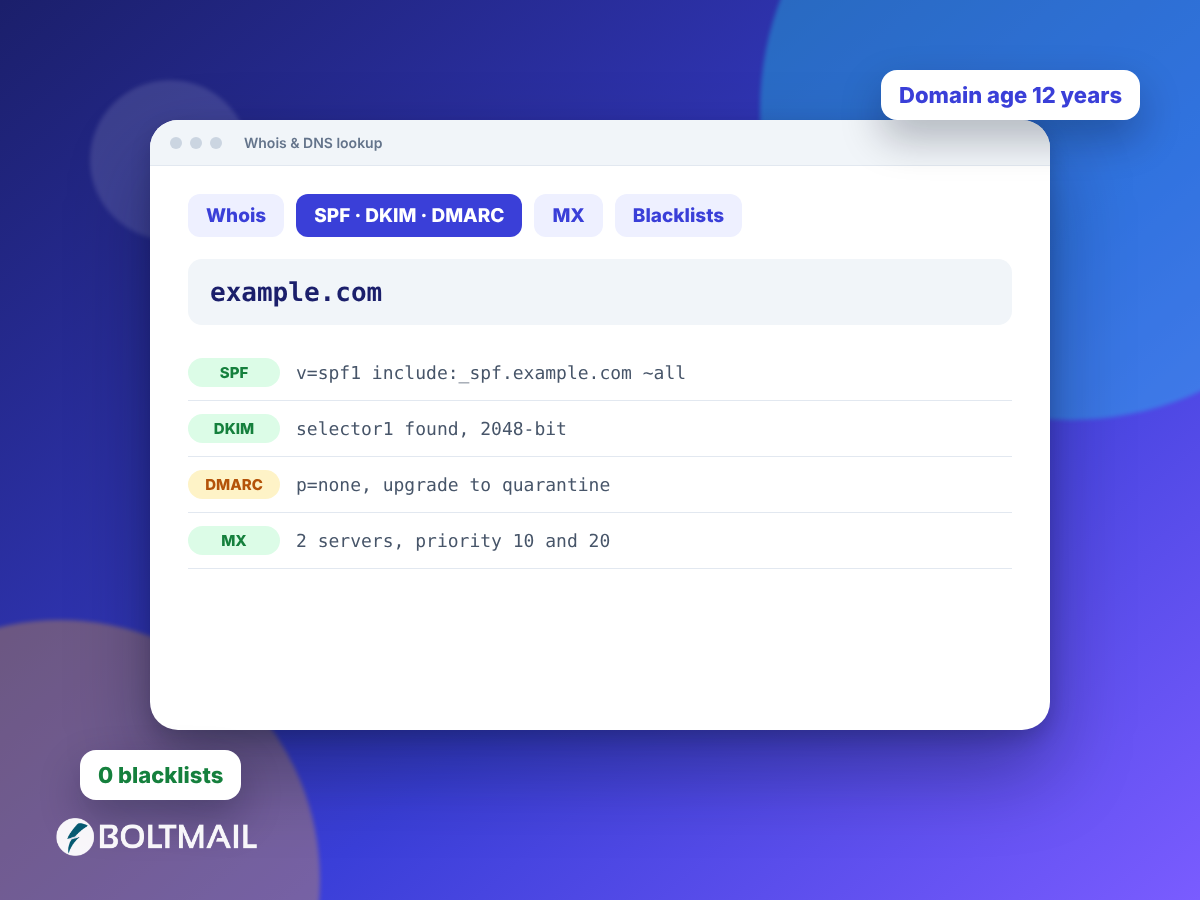
Send yourself a message with the new signature and look at it on your phone and on a computer. The easiest way is to send it to a free BoltMail temporary inbox: you see exactly what a recipient sees, and nothing is left in your own mailbox. While you are at it, run the message through the Email Spam Score Tester to make sure the signature is not adding spam points, and check that your sending domain passes SPF, DKIM and DMARC with the Whois & DNS Lookup, because a beautiful signature does not help if the email lands in the spam folder.
Is it private?
Yes. The generator runs entirely in your browser. Your name, details and pictures are never uploaded or stored on our servers. Your design is remembered in your own browser so you can come back to it, and you can save named designs or export a file to use on another computer.
Frequently asked questions
Is the email signature generator free?
Yes. There is no sign-up, no watermark and no limit on how many signatures you make.
Can I use one design for my whole team?
Yes. Make one design, then change the name and details for each person and copy it for each of them. You can also export the design as a file and share it.
Why do my pictures disappear in Gmail?
Gmail removes pictures that are embedded in a signature. Host the picture on your website and use its link.
Can I start from scratch instead of a template?
Yes. Choose the type of signature you need and the generator fills in sample details and the extra lines that kind of work uses, ready for you to replace.
Ready? Open the free Email Signature Generator and have your new signature in minutes.